 Papr for macOS
Notes as quick as a text message.
Papr floats above whatever you're doing. Press ⌃ Space in any app, type the thought, press Return. It's saved, and you're back where you were.

It opens as just a composer. Type the thought, press Return, get back to work.
After a break, Papr comes up as one box to type into, already focused, in the same spot on your screen.
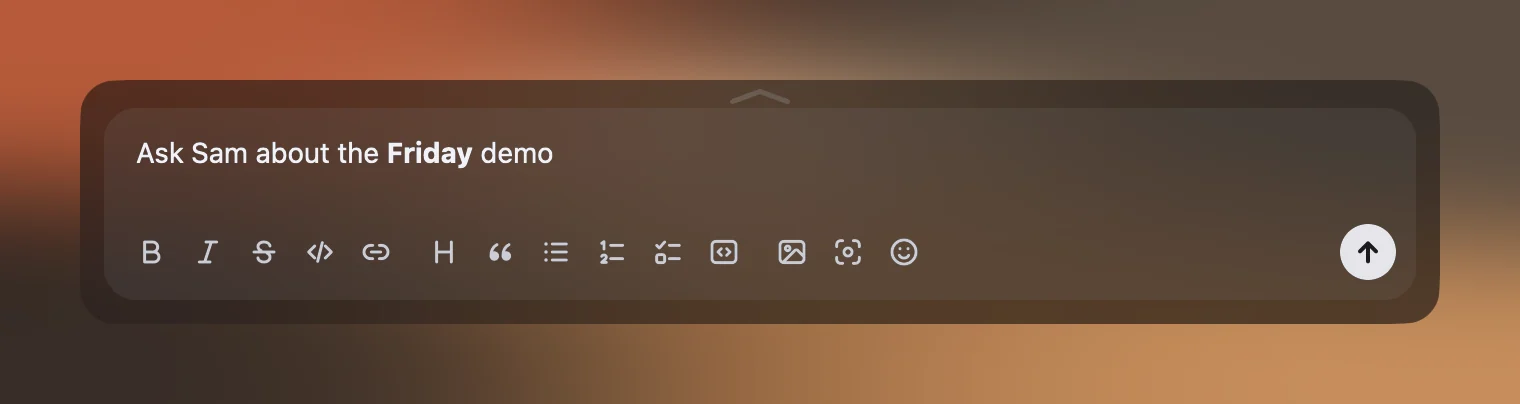
- From any app⌃ Space works over full-screen apps and on every Space. You can change it in Settings.
- Return to save⇧ Return adds a line, Esc hides Papr again.
- Your notes, one key away⇧⌘L opens the list: newest at the bottom, each with its time.
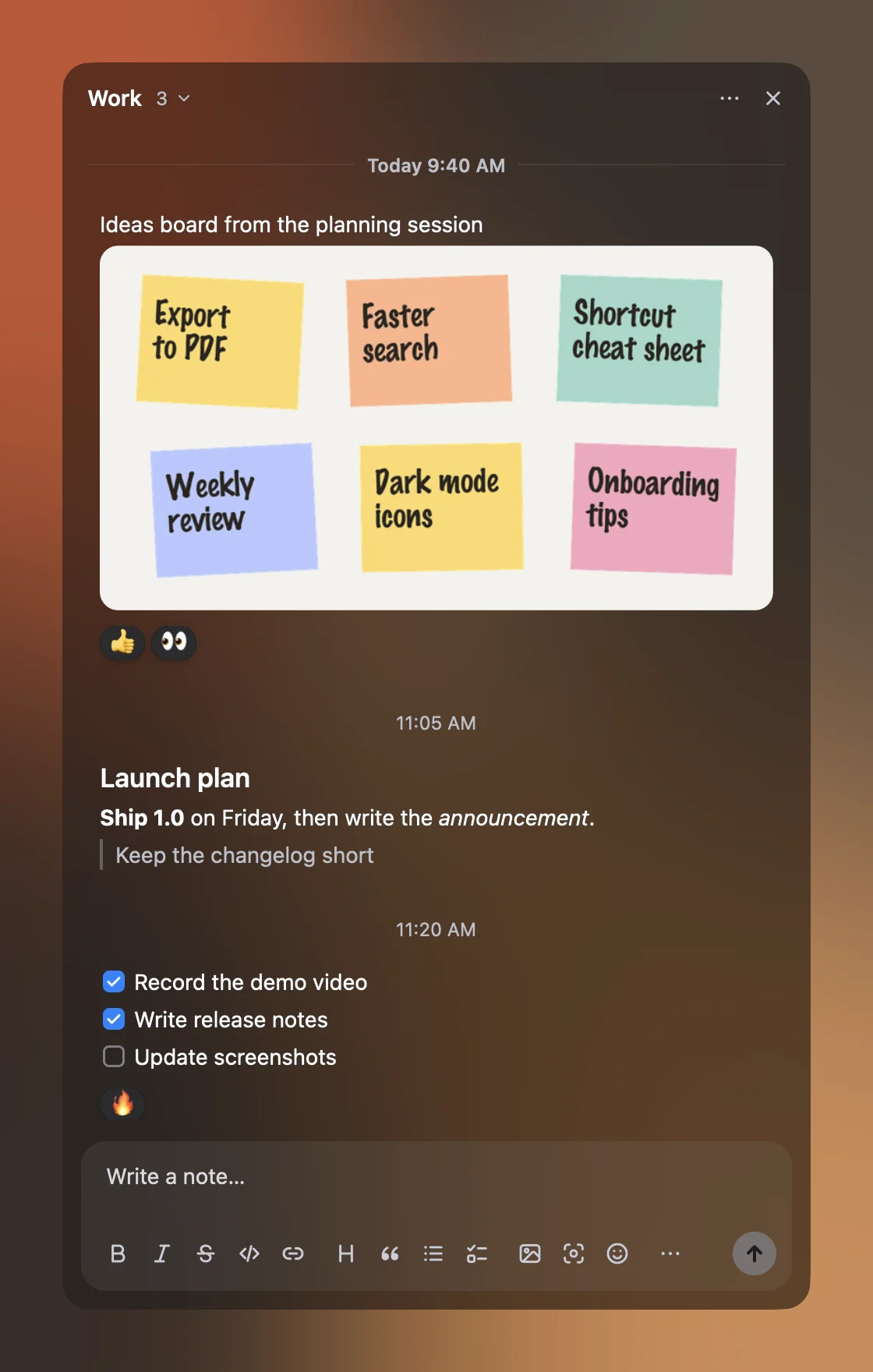
Notes that hold more than text. Formatting shows as you type.
Papr keeps each note as Markdown and shows it formatted, in the composer and in the list.
- MarkdownBold, headings, lists, quotes and code, with toolbar buttons and shortcuts.
- ChecklistsStart a line with
- [ ]and tick items off right in the note. - ImagesPaste or drop an image and it lands in the note.
- Screen captures⇧⌘S captures the screen behind Papr.
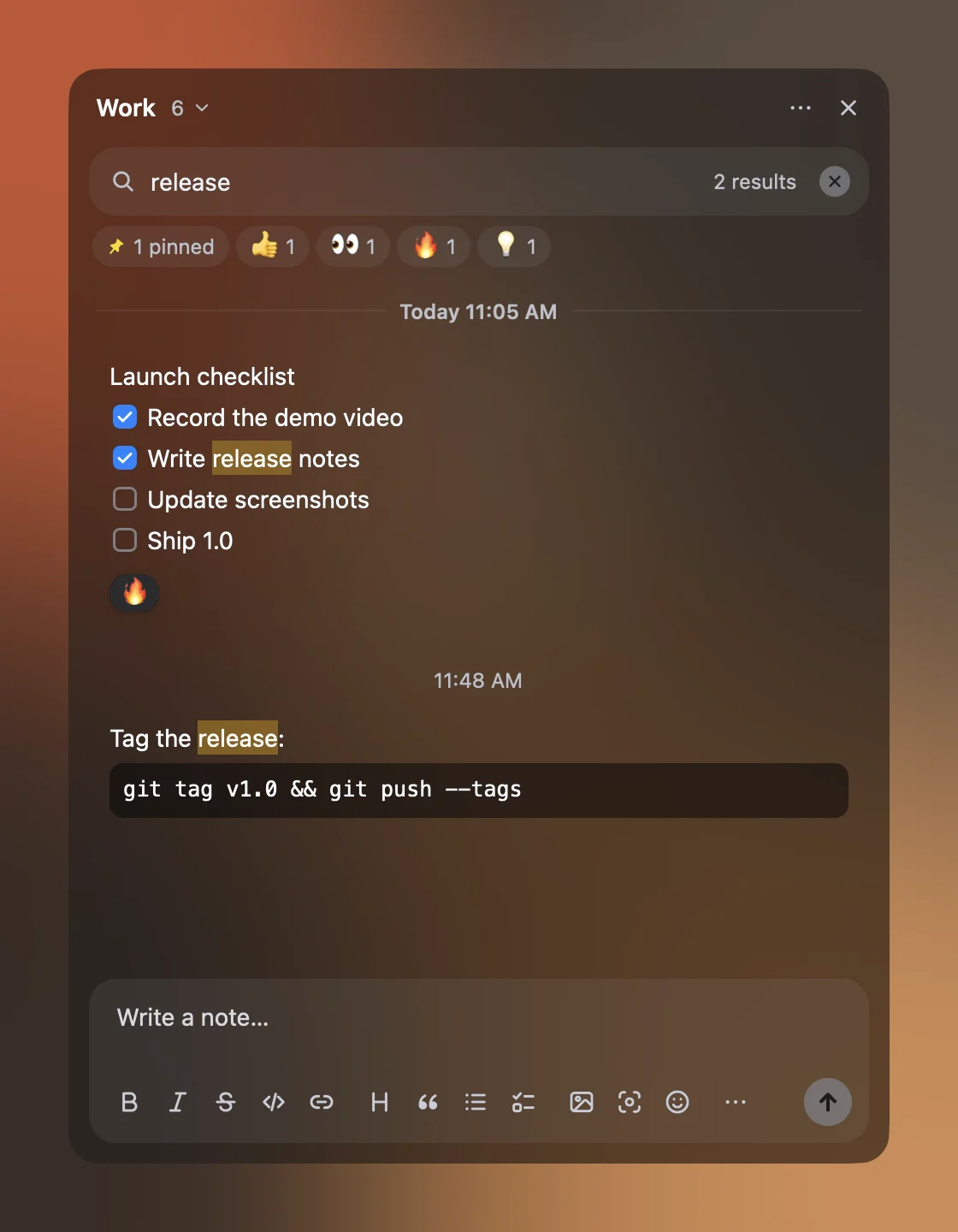
Find anything again. Search, filter and switch in a keystroke.
Everything you've jotted down stays a few keys away, however much there is.
- Search⌘F finds any note as you type and highlights the match.
- Reactions as labelsReact with any emoji, then filter by it.
- PinsPin the notes you'll need again and show just those.
- Workspaces⌘K switches between work, personal and anything else.
Your notes stay on your Mac. No account, no sync, no analytics.
Notes
Notes, images and settings are saved to your Library folder after every change, as Markdown text in a JSON file. Nothing is uploaded.
License checks
Activating sends your license key, your Mac's name and a one-way hash of its hardware ID to Polar's license API, and Papr re-checks about once a day. The hardware ID itself never leaves your Mac.
Updates
Update checks and downloads come from GitHub, where Papr's releases are published. Nothing about you or your notes is sent.
Purchases
Polar handles payment details. We receive your email and order details from Polar to provide your license and support.
This site
No cookies for tracking and no analytics.
One license, one Mac. Move it when you switch Macs.
Polar processes the payment and issues your license key.
- Buy PaprPay through Polar's checkout.
- Get your license keyPolar gives you the key with your purchase and keeps it in your Polar customer portal.
- Paste it into PaprThe first time Papr opens, it asks for the key.
- One Mac per license key
- New Mac? Deactivate the old one in Settings → License, then activate the key on the new one
- Updates: Papr checks daily and installs with one click, or on its own if you turn that on. Each update’s signature is checked first
- Works offline: the license is re-checked about once a day and keeps working for 30 days without a connection
Purchases are processed by Polar.
Support and refunds. Email goes to the developer.
Support
Questions, a bug, trouble with your key? Email support@papr.nemixe.com and you'll get a reply from the developer.
Include your macOS version and, for license questions, the email you bought with.
Refunds
If Papr isn't right for you, email support@papr.nemixe.com within 14 days of purchase for a full refund.
Refunds are issued through Polar to your original payment method. A refunded license key stops working.